Windows Domain Controller Purple Screen Login Troubleshooting
Comprehensive guide to fixing Windows domain controller login hangs with purple loading screens, including causes and troubleshooting steps when safe mode fails.
What causes Windows domain controllers to hang during login with a purple loading screen, and what troubleshooting steps should be taken when safe mode and basic diagnostics don’t resolve the issue?
Windows domain controllers often hang with purple loading screens due to missing Active Directory objects, password mismatches, or replication issues that prevent proper authentication. When standard troubleshooting like safe mode fails, advanced techniques including metadata cleanup and replacing problematic domain controllers may be necessary to restore normal login functionality.
Contents
- Understanding Windows Domain Controller Login Issues
- Common Causes of Purple Screen Login Hangs
- Initial Diagnostic Steps for Domain Controller Problems
- Advanced Troubleshooting When Safe Mode Fails
- Fixing Missing Active Directory Objects
- Password-Related Login Issues and Solutions
- Replacing a Problematic Domain Controller
- Sources
- Conclusion
Understanding Windows Domain Controller Login Issues
Windows domain controllers are critical components of Active Directory environments, handling authentication and authorization for network resources. When these servers hang during the login process with a purple loading screen, it indicates a fundamental problem with the authentication mechanism that prevents users from accessing network resources. This issue typically manifests after entering credentials, where the system appears to load but never completes the login process, leaving users stuck at a purple or blue screen with only a cursor visible.
The purple screen hang specifically affects Windows Server 2012 R2 domain controllers and is not typically seen in older versions like 2008 R2. This problem often emerges after demoting legacy domain controllers (such as 2003 DCs) and raising domain functional levels, suggesting a compatibility or configuration issue related to the newer Active Directory schema. Understanding the underlying causes is essential for implementing effective troubleshooting strategies that go beyond basic diagnostics.
Common Causes of Purple Screen Login Hangs
Several root causes can trigger the purple screen login hang in Windows domain controllers, with the most prevalent being missing Active Directory objects. One specific issue involves the absence of the “CN=Password Settings Container” object in Active Directory, which is critical for proper authentication workflows. When this container is missing, the authentication process fails to complete, resulting in the characteristic purple screen hang.
Another common cause is a password mismatch between the current password and what’s cached in the system’s Credential Manager. This creates a deadlock between three critical components: Credential Manager, Redirector (RDR), and Data Protection API (DPAPI). When these components cannot synchronize properly, the login process hangs at the “Welcome” screen, preventing users from accessing their desktop environment.
Replication issues across domain controllers can also trigger this problem. When changes aren’t properly replicated between DCs, authentication requests may fail or hang as the system attempts to verify credentials against inconsistent data. This is particularly problematic in environments with multiple domain controllers where replication health isn’t regularly monitored. Additionally, metadata corruption or FSMO (Flexible Single Master Operations) role issues can manifest as login hangs, requiring specialized troubleshooting approaches beyond standard diagnostics.
Initial Diagnostic Steps for Domain Controller Problems
Before attempting advanced troubleshooting, it’s essential to perform comprehensive diagnostics to identify the specific cause of the login hang. Start by running the Domain Controller Diagnostic tool (dcdiag) across all domain controllers in your environment. The recommended command is dcdiag /e /c /v /f:c:\temp\dcdiag.txt, which performs an extended test on all domain controllers and saves detailed results to a log file for analysis. This command will reveal replication issues, service problems, and other domain controller health indicators.
Next, use the Replication Diagnostic utility (repadmin) to check replication consistency between domain controllers. Commands like repadmin /showrepl * /verbose and repadmin /replsummary can identify replication failures or delays that might be causing authentication problems. Pay special attention to any error messages related to password replication or user authentication processes.
Verify the health of critical services that support authentication, including the Netlogon service, Kerberos Key Distribution Center (KDC), and Active Directory Domain Services. Check the Event Viewer on both the affected domain controller and other DCs for any error patterns or warnings that coincide with login attempts. Remote event viewer access often remains possible even when local login fails, providing a valuable diagnostic window into what’s happening during the authentication process.
Advanced Troubleshooting When Safe Mode Fails
When safe mode and basic diagnostics don’t resolve the purple screen login hang, more advanced troubleshooting techniques are required. One approach involves examining the metadata associated with the problematic domain controller. Metadata cleanup may be necessary if the domain controller’s objects in Active Directory are corrupted or inconsistent with the actual server state. This process requires careful planning to avoid disrupting the entire Active Directory environment.
Consider checking the health of your forest-wide operations before proceeding with any advanced fixes. Use the Active Directory Best Practices Analyzer to identify potential configuration issues that might contribute to login problems. This tool can reveal policy conflicts, security setting misconfigurations, or other subtle issues that standard diagnostics might miss.
If multiple domain controllers in your environment exhibit the same symptoms immediately after promotion, this suggests a systematic issue rather than an isolated server problem. In such cases, reviewing the domain functional level and forest functional level settings becomes crucial. Ensure these levels are appropriate for your environment and compatible with all domain controllers. Sometimes, raising functional levels too quickly after demoting older domain controllers can create authentication compatibility issues that manifest as login hangs.
Fixing Missing Active Directory Objects
The absence of critical Active Directory objects, particularly the “CN=Password Settings Container,” is a known cause of purple screen login hangs. To address this, you’ll need to recreate the missing objects using Active Directory Users and Computers or PowerShell commands. The Password Settings Container is essential for Group Password Policy Objects and must be present for proper authentication workflows.
For more complex object restoration, consider using the authoritative restore feature in Active Directory. This allows you to restore specific objects from backups while marking them as authoritative, which forces replication of these objects to all domain controllers. Before performing any restore operations, ensure you have a recent backup and understand the replication implications of authoritative restores.
Another approach involves using the ntdsutil tool to perform metadata cleanup and repair operations. This advanced utility can help remove lingering references to demoted domain controllers or repair corrupted database pages. Exercise extreme caution when using ntdsutil, as improper use can severely damage your Active Directory environment. Always test procedures in a non-production environment before applying them to critical systems.
Password-Related Login Issues and Solutions
Password mismatches between Credential Manager and the actual Active Directory database create a deadlock scenario that results in login hangs. To resolve this, start by clearing the Credential Manager cache on affected systems. This can be done using the Windows Credential Manager interface or via PowerShell commands to remove cached credentials that may be causing authentication conflicts.
Next, verify the password synchronization between domain controllers using the repadmin tool with a focus on password replication. Commands like `repadmin /showobjmeta * “cn=system,dc=domain,dc=com” can help identify inconsistencies in password data across your domain controller environment. Address any replication issues promptly to ensure all DCs have consistent password information.
For persistent password-related problems, consider implementing a password reset strategy for affected user accounts. This involves generating new passwords and ensuring they’re properly replicated across all domain controllers. While disruptive, this approach can break the authentication deadlock and restore login functionality. Communicate with users about the password changes and provide clear instructions for updating their credentials on all devices.
Replacing a Problematic Domain Controller
When all troubleshooting efforts fail to resolve the purple screen login hang, replacing the problematic domain controller may be the most reliable solution. Begin by promoting a new Windows Server with the same version as your existing domain controllers. This new server should join the domain as an additional domain controller, not as a replacement for the problematic one.
After promoting the new domain controller, transfer all FSMO roles from the problematic DC to the new one. Use the ntdsutil tool or Active Directory Users and Computers to move these critical roles, ensuring continuity of directory operations. Once roles are transferred, demote the problematic domain controller carefully, following Microsoft’s recommended procedures to avoid leaving orphaned objects in Active Directory.
Before demoting the old DC, verify that all critical services and applications have been updated to use the new domain controller for authentication. This includes checking Group Policy Objects, service accounts, and application configurations that reference the old DC. After successful demotion, monitor the new domain controller’s performance and replication health to ensure it’s handling authentication requests properly and not exhibiting the same issues as the previous server.
Sources
- Microsoft Q&A - Unable to logon to domain controller after reboot — Technical discussion on purple screen login hangs in Windows Server 2012 R2 DCs: https://learn.microsoft.com/en-us/answers/questions/106459/unable-logon-to-domain-controller-after-reboot
- Microsoft Q&A - Not able to move beyond the server login screen — Analysis of password mismatch issues and metadata cleanup solutions: https://learn.microsoft.com/en-us/answers/questions/820128/not-able-to-move-beyond-the-server-login-screen
Conclusion
Windows domain controller login hangs with purple screens represent complex authentication failures that require systematic troubleshooting. While safe mode and basic diagnostics can resolve many issues, persistent problems often demand advanced techniques like metadata cleanup, Active Directory object restoration, or complete domain controller replacement. Understanding the root causes—from missing objects to password mismatches—is essential for implementing effective solutions.
For system administrators dealing with this issue, the key is methodical diagnosis followed by targeted fixes. Always start with comprehensive health checks using dcdiag and repadmin tools before proceeding to more advanced operations. When all else fails, promoting a new domain controller and properly decommissioning the problematic one provides a reliable path to restoring normal authentication workflows. Regular monitoring of domain controller health and replication status can help prevent these issues before they impact users.
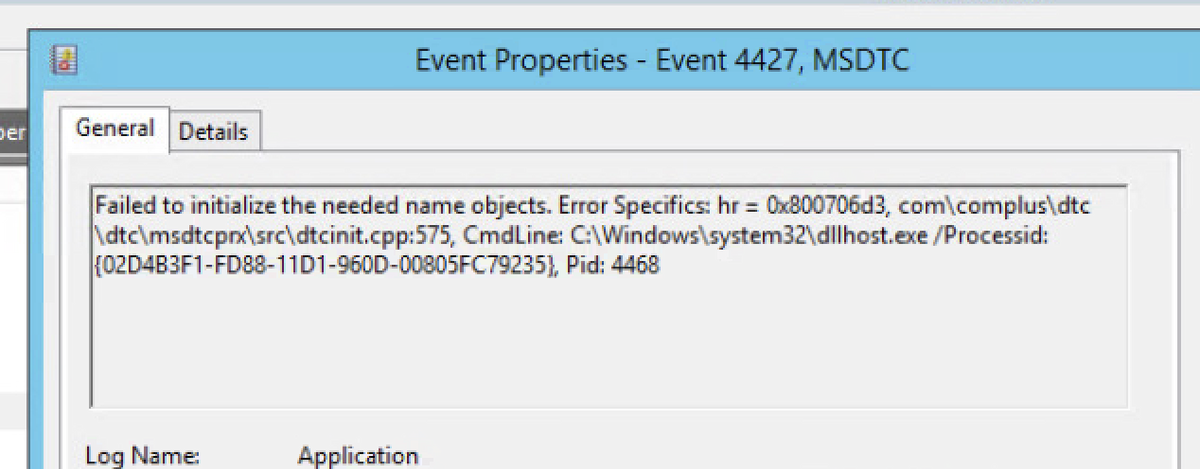
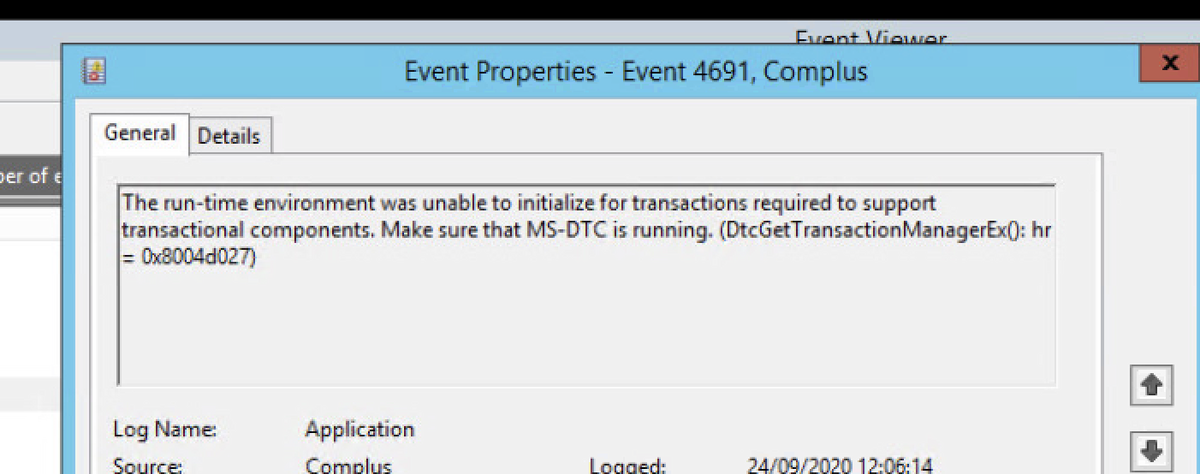
The purple screen login hang issue affects Windows Server 2012 R2 domain controllers but not 2008 R2 servers. This problem began after demoting all 2003 DCs and raising functional levels. When in “stalled mode,” services like MSDTC fail to start, though remote event viewer access remains possible. The root cause may be a missing CN=Password Settings Container in Active Directory. To diagnose, run dcdiag /e /c /v /f:c:\temp\dcdiag.txt across all domain controllers and check for replication issues. All 2012 R2 DCs show the same symptoms immediately after promotion, with the cursor returning to the password field after entering credentials.

One cause of the purple screen hang is a password mismatch between the current password and what’s cached in Credential Manager, creating a deadlock between Credential Manager, Redirector (RDR), and Data Protection API (DPAPI). When login hangs at the “Welcome” screen, consider metadata cleanup as a solution. Verify domain controller health using dcdiag and repadmin tools before operations. If safe mode and basic diagnostics fail, the recommended approach is to perform metadata cleanup, confirm forest health is 100%, and stand up a new domain controller as a replacement, transferring FSMO roles as needed.
