Bitrix Newsletter Configuration: Fixing Scheduled Sending Issues
Comprehensive guide to fixing Bitrix newsletter issues when scheduled emails don't send and template content fails to load. Includes cron configuration and troubleshooting steps.
How to properly configure a newsletter subscription system in Bitrix? My daily scheduled newsletters are not sending despite being configured, and news content is not loading in the template. Test emails work fine, but scheduled newsletters don’t. What could be causing this issue and how can I fix it?
Bitrix newsletter configuration requires proper setup of email campaigns, templates, and cron scheduling to ensure scheduled newsletters send correctly. When test emails work but scheduled newsletters fail and template content doesn’t load, this typically indicates issues with ad-blocking extensions interfering with template creation or cron configuration problems in your Bitrix24 installation.
Contents
- Understanding Bitrix Newsletter System Configuration
- Troubleshooting Scheduled Newsletter Issues in Bitrix
- Fixing Template Content Loading Problems in Bitrix
- Proper Cron Configuration for Bitrix Newsletters
- Best Practices for Bitrix Email Campaign Management
- Advanced Solutions for Persistent Newsletter Problems
Understanding Bitrix Newsletter System Configuration
The Bitrix24 email campaign system is designed to send newsletters to targeted recipient groups through a straightforward process. To create a successful Bitrix newsletter (рассылка битрикс), navigate to the Marketing section > Start tab and click on the Email campaign block. This initiates the newsletter creation workflow where you’ll need to select a campaign template, choose recipient segments, specify subject and sender information, design your newsletter content, configure campaign parameters, and finally send the campaign.
When designing your newsletter, you can customize various blocks like text, images, and buttons to create engaging content. Remember that the Footer block is obligatory for proper unsubscribe functionality - without it, recipients won’t be able to opt out of your future communications. If you’re using Custom HTML templates in your Bitrix рассылка, ensure you include the unsubscribe link code to comply with email regulations and provide recipients with control over their subscriptions.
For personalized content in your рассылка битрикс 24, you can add CRM variables like customer names, but note these can only be used in campaigns with dynamic segments. This limitation means you need to plan your segmentation strategy before creating personalized email content.
Troubleshooting Scheduled Newsletter Issues in Bitrix
When scheduled newsletters fail to send while test emails work perfectly, the most common culprit is ad-blocking extensions that interfere with template creation or the newsletter engine itself. These extensions can block critical JavaScript files or API calls that Bitrix24 needs to render templates and execute scheduled tasks properly.
First, check the Bitrix24 status page to ensure there are no system-wide issues affecting email delivery. If the status shows everything is operational, retry sending your newsletter after a few minutes - sometimes temporary delays occur in the system.
If the problem persists, the solution is straightforward:
- Disable any ad-blocking extensions in your browser (Chrome, Firefox, Edge, Vivaldi, Opera, or Safari)
- Delete the existing templates that were created with blockers enabled
- Recreate your templates with all ad-blocking extensions turned off
- Send the newsletter again
- You can re-enable the blockers afterward
This approach resolves the issue in most cases because ad-blockers prevent Bitrix24 from properly loading and saving template content, which then affects scheduled sending. The test emails work because they bypass many of the template rendering processes that scheduled newsletters require.
Fixing Template Content Loading Problems in Bitrix
Template content not loading in Bitrix24 is another frustrating issue that often accompanies the scheduled newsletter problems. Email templates in Bitrix24 allow you to create and send emails with consistent content efficiently, but when they fail to load properly, it can derail your entire email marketing strategy.
To create an email template properly, open the CRM form and select More - Email in the timeline. Choose a template from the existing list or create a new one. If you frequently send emails using the same template, enable the Remember last used option so it automatically opens when you create a new email - this saves time and ensures consistency in your communications.
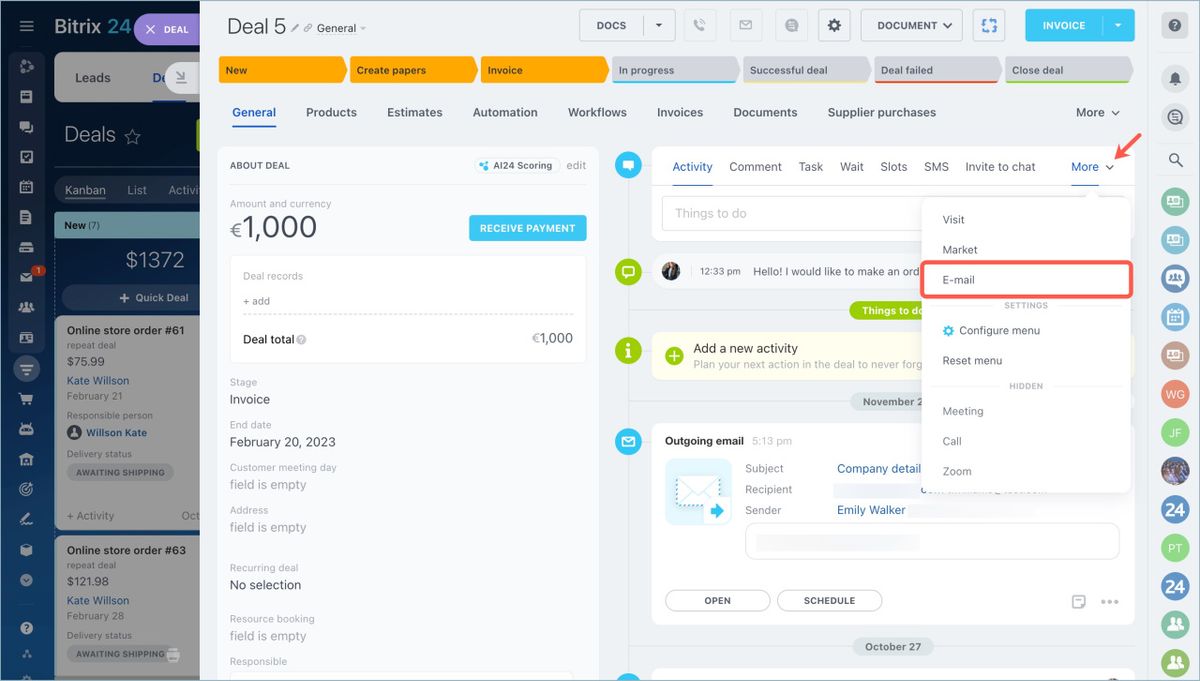
When template content doesn’t load, it’s often because the template was created or edited while ad-blocking extensions were active. The solution involves deleting affected templates and recreating them with extensions disabled. You can only modify templates you’ve created yourself directly from the CRM email form, so ensure you have the proper permissions to make these changes.
This feature is particularly useful for company details, standard responses, or frequently sent information to partners and clients. When template loading issues persist, consider clearing your browser cache or using a different browser altogether to rule out browser-specific problems affecting the Bitrix24 interface.
Proper Cron Configuration for Bitrix Newsletters
Cron configuration is critical for scheduled newsletters in Bitrix24. Many users overlook this technical requirement and focus only on the visual setup of their email campaigns, leading to frustration when scheduled newsletters don’t send as expected.
In the Bitrix Virtual Appliance environment, cron is enabled by default but can be disabled if needed. To check your cron status, navigate to main menu > 6. Manage sites in the pool > 3. Change cron tasks on site and input the hostname to verify the cron service status for that site. Proper cron configuration is essential for scheduled newsletters to function correctly, as it handles the automatic execution of tasks at specified intervals.
For projects where agents need to be processed via cron, specific configuration steps are required. First, execute the following commands on the php console:
COption::SetOptionString("main", "agents_use_crontab", "N");
COption::SetOptionString("main", "check_agents", "N");
Then, modify the /bitrix/php_interface/dbconn.php file to properly define the BX_CRONTAB_SUPPORT and BX_CRONTAB constants. Create a file named /bitrix/php_interface/cron_events.php with the necessary PHP code to process agents and system messages. Add this script to cron with a schedule like */5 * * * * /usr/bin/php -f /home/bitrix/www/bitrix/php_interface/cron_events.php to process agents every 5 minutes.
To prevent queue buildup, increase the mail_event_bulk parameter using COption::SetOptionString("main", "mail_event_bulk", "20"); on the php console. This adjustment allows more emails to be processed in each batch, improving the efficiency of your Bitrix рассылка system.
Best Practices for Bitrix Email Campaign Management
Effective Bitrix newsletter management involves more than just technical configuration - it requires strategic planning and execution. When implementing your email marketing strategy through Bitrix24, consider these best practices to maximize deliverability and engagement.
First, always test your campaigns thoroughly before scheduling them. Send test emails to yourself and colleagues to verify that all content loads correctly, images display properly, and links function as expected. This simple step can prevent most of the issues with template content not loading.
Second, segment your recipient lists carefully. Bitrix24 allows for sophisticated segmentation based on CRM data, user behavior, and other criteria. Proper segmentation ensures that your рассылка битрикс reaches the most relevant audience, improving open rates and reducing unsubscribe rates.
Third, monitor your campaign performance regularly. Bitrix24 provides analytics that show delivery rates, open rates, click-through rates, and other important metrics. Use this data to refine your email strategy and improve future campaigns.
Fourth, maintain a clean email list. Regularly remove inactive subscribers and those who have unsubscribed to maintain good sender reputation and ensure your emails reach the inbox rather than the spam folder.
Finally, keep your templates organized and well-documented. Create a naming convention for your email templates that makes it easy to find and reuse them for similar campaigns in the future.
Advanced Solutions for Persistent Newsletter Problems
If you’ve tried all the standard troubleshooting steps and your Bitrix newsletter issues persist, you may need to implement more advanced solutions. These approaches address deeper technical problems that can affect scheduled sending and template loading.
First, check your server configuration for any restrictions that might be preventing Bitrix24 from executing cron jobs properly. Some hosting environments have security settings that limit PHP execution or file access, which can interfere with the newsletter system.
Second, consider upgrading your Bitrix24 installation to the latest version. Older versions may have bugs or limitations that have been fixed in recent updates. Before upgrading, always back up your data and test in a staging environment to ensure compatibility with your customizations.
Third, review your email templates for potential code issues. Complex HTML or JavaScript in templates can sometimes cause rendering problems or execution errors. Simplify your templates where possible and remove any unnecessary code.
Fourth, check your server logs for error messages related to email sending or cron execution. These logs can provide valuable clues about what’s going wrong with your рассылка битрикс 24 system.
If all else fails, contact Bitrix24 support via the chat in your account for further assistance. They have access to diagnostic tools and can provide personalized help for your specific configuration. Remember to provide them with detailed information about your setup, including your Bitrix24 version, server environment, and the exact steps you’ve already taken to troubleshoot the issue.
Sources
- Bitrix24 Helpdesk - Newsletter Troubleshooting - Solutions for scheduled newsletters not sending and template content issues: https://helpdesk.bitrix24.com/open/22131900/
- Bitrix24 Helpdesk - Email Campaign Setup - Comprehensive guide to creating successful Bitrix24 email campaigns: https://helpdesk.bitrix24.com/open/25753267/
- Bitrix24 Helpdesk - Email Template Management - Instructions for creating and managing email templates in Bitrix24: https://helpdesk.bitrix24.com/open/19087554/
- Bitrix24 Training - Cron Configuration - Technical documentation for cron configuration in Bitrix Virtual Appliance: https://training.bitrix24.com/support/training/course/?COURSE_ID=113&LESSON_ID=6589
- Bitrix24 Training - Agent Processing via Cron - Advanced configuration for processing agents through cron in Bitrix24: https://training.bitrix24.com/support/training/course/?COURSE_ID=113&LESSON_ID=6603
Conclusion
Proper Bitrix newsletter configuration requires attention to both the visual setup and technical backend components. When your daily scheduled newsletters aren’t sending despite being configured and template content isn’t loading, the most common culprits are ad-blocking extensions interfering with template creation or improper cron configuration in your Bitrix24 installation.
By following the troubleshooting steps outlined in this guide - disabling ad-blockers, recreating affected templates, verifying cron settings, and implementing proper agent processing - you can resolve most issues with your рассылка битрикс system. Remember that test emails often work because they bypass many of the technical requirements that scheduled newsletters need, which is why the same issues don’t manifest during testing.
For ongoing success with your Bitrix24 email campaigns, establish best practices around template management, audience segmentation, and performance monitoring. These strategies, combined with proper technical configuration, will ensure your рассылка битрикс 24 delivers reliably and effectively to your target audience.
When scheduled newsletters fail to send while test emails work, the most common culprit is ad-blocking extensions that interfere with template creation or the newsletter engine. First, check the Bitrix24 status page and retry after a few minutes. Then, disable any ad-blocking extensions in Chrome, Firefox, Edge, Vivaldi, Opera, or Safari, delete the existing templates that were created with blockers enabled, and recreate them with extensions turned off. Send the newsletter again; you can re-enable the blockers afterward. If the problem persists, contact Bitrix24 support via the chat in your account for further assistance.
Email Campaign in Bitrix24 is a powerful tool for sending newsletters to groups of recipients. To create a successful email campaign, navigate to the Marketing section > Start tab and click on the Email campaign block. You’ll need to select a campaign template, choose recipient segments, specify subject and sender information, design your newsletter, configure campaign parameters, and finally send the campaign. When designing your newsletter, customize blocks like text, images, and buttons, and remember that the Footer block is obligatory for unsubscribe functionality. If you use Custom HTML templates, ensure you include the unsubscribe link code. For personalized content, add CRM variables like customer names, but note these can only be used in campaigns with dynamic segments.
Email templates in Bitrix24 allow you to create and send emails with consistent content efficiently. To create an email template, open the CRM form and select More - Email in the timeline. Choose a template from the list or create a new one. If you frequently send emails using the same template, enable the Remember last used option so it automatically opens when you create a new email. You can edit templates directly from the CRM email form, though you can only modify templates you’ve created yourself. This feature is particularly useful for company details, standard responses, or frequently sent information to partners and clients.
Cron configuration is critical for scheduled newsletters in Bitrix24. In the Bitrix Virtual Appliance environment, cron is enabled by default but can be disabled if needed. To disable the cron service, navigate to main menu > 6. Manage sites in the pool > 3. Change cron tasks on site and input the hostname to disable the cron service for that site. Confirm the action and wait for the task to complete. The same procedure can be used to re-enable Cron when needed. Proper cron configuration is essential for scheduled newsletters to function correctly, as it handles the automatic execution of tasks at specified intervals.
For projects where agents need to be processed via cron, specific configuration steps are required. First, execute the following commands on the php console: COption::SetOptionString("main", "agents_use_crontab", "N"); and COption::SetOptionString("main", "check_agents", "N");. Then, modify the /bitrix/php_interface/dbconn.php file to properly define the BX_CRONTAB_SUPPORT and BX_CRONTAB constants. Create a file named /bitrix/php_interface/cron_events.php with the necessary PHP code to process agents and system messages. Add this script to cron with a schedule like */5 * * * * /usr/bin/php -f /home/bitrix/www/bitrix/php_interface/cron_events.php to process agents every 5 minutes. To prevent queue buildup, increase the mail_event_bulk parameter using COption::SetOptionString("main", "mail_event_bulk", "20"); on the php console.
