Bootstrap 5 Rowspan Effect in Columns
Learn how to create a rowspan-like effect in Bootstrap 5 columns with nested layout for responsive design.
How can I create a rowspan-like effect in Bootstrap 5 columns to make one column span multiple rows while maintaining responsive layout behavior? I need a logo column to double height with basket and search columns nested on the right.
To create a rowspan-like effect in Bootstrap 5 where your logo column spans double height with basket and search columns nested on the right, you’ll need to use nested columns within Bootstrap’s flexbox grid system. This approach leverages Bootstrap’s responsive design principles while achieving the visual appearance of a column spanning multiple rows.
Contents
- Understanding Bootstrap 5 Grid System for Rowspan Effects
- Creating a Rowspan-like Effect with Nested Columns
- Implementing Responsive Layout with Bootstrap 5 Columns
- Custom CSS Solutions for Height Control in Bootstrap 5
- Practical Example: Logo Column Spanning Multiple Rows
- Sources
- Conclusion
Understanding Bootstrap 5 Grid System for Rowspan Effects
Bootstrap 5’s grid system is built on flexbox rather than traditional tables, which means concepts like rowspan from HTML tables don’t directly apply. However, you can achieve similar visual effects using nested columns and proper grid structure. The key is understanding how Bootstrap’s grid classes like col-md-* work together to create responsive layouts.
In Bootstrap 5, columns are fluid and responsive by default. When you create a row and add columns, they automatically stack vertically on smaller screens. This inherent flexibility allows you to create layouts that appear to span multiple rows while maintaining the framework’s responsive behavior.
The challenge with creating a rowspan-like effect comes from the fact that Bootstrap doesn’t have a native rowspan equivalent. Instead, you’ll need to use a combination of column nesting and careful sizing to achieve the visual effect of one column spanning multiple rows while other elements align properly.
Creating a Rowspan-like Effect with Nested Columns
The most effective approach to creating a rowspan-like effect in Bootstrap 5 is by nesting columns within your main layout structure. Here’s how to implement this:
- Create a main row with your logo column (using appropriate classes like
col-md-4for example) - In the adjacent column, add a nested row that contains your basket and search elements
- Use proper sizing classes to ensure the visual alignment you want
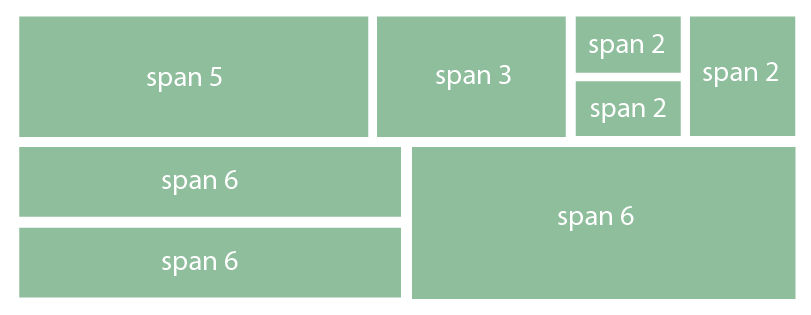
This approach works because the nested row within the right column creates the visual impression of spanning the same height as your logo column. On larger screens, the basket and search columns will appear side by side within the nested row, while on smaller screens, they’ll stack vertically as Bootstrap’s responsive system dictates.
Why does this approach work well? Because it leverages Bootstrap’s flexbox foundation. When you nest a row inside a column, the nested row inherits the height of its parent column, creating the rowspan-like effect you’re seeking. This method maintains all the responsive benefits of Bootstrap’s grid system.
Implementing Responsive Layout with Bootstrap 5 Columns
When implementing your rowspan-like effect, maintaining responsive behavior across different screen sizes is crucial. Bootstrap 5 provides several strategies to ensure your layout works well on all devices:
Use the appropriate breakpoint prefixes in your column classes. For example:
col-md-4for medium screens and abovecol-lg-3for larger screenscol-sm-6for small screens
Remember that your nested columns will automatically stack on smaller screens, which is actually beneficial for mobile layouts. The logo column will take full width, followed by the basket and search elements stacking vertically.
You might need to adjust your breakpoints based on your specific content requirements. Test your layout on different screen sizes using Bootstrap’s built-in responsive utilities or browser developer tools.
For the best responsive experience, consider adding visibility classes to show/hide certain elements on different screen sizes. This can help optimize the layout for mobile devices where screen real estate is limited.
Custom CSS Solutions for Height Control in Bootstrap 5
While the nested column approach works for most cases, you might need custom CSS for more precise height control. Here are some solutions you can implement:
For equal height columns, you can use:
.row-eq-height {
 display: flex;
 flex-wrap: wrap;
}

.row-eq-height > [class*='col-'] {
 display: flex;
 flex-direction: column;
}
To specifically control the height of your logo column:
.logo-column {
 min-height: 200px; /* Adjust based on your content */
}
If you need more precise control over the nested content:
.nested-content {
 display: flex;
 flex-direction: column;
 height: 100%;
}

.nested-content > div {
 flex: 1;
}
These CSS solutions work with Bootstrap’s flexbox system rather than against it, ensuring your custom styles complement the framework’s responsive behavior.
Remember that Bootstrap 5 already includes utilities for height control, such as h-25, h-50, h-75, and h-100. You can combine these with your custom CSS for more layout control.
Practical Example: Logo Column Spanning Multiple Rows
Here’s a complete implementation of your specific requirement - a logo column spanning double height with basket and search columns nested on the right:
<div class="container">
 <div class="row">
 <!-- Logo column that spans double height -->
 <div class="col-md-4 logo-column">
 <div class="logo-container">
 <!-- Your logo content here -->
 <img src="logo.png" alt="Company Logo" class="img-fluid">
 </div>
 </div>

 <!-- Right column with nested content -->
 <div class="col-md-8">
 <div class="row">
 <!-- Basket column -->
 <div class="col-md-6">
 <div class="basket-container">
 <!-- Your basket content here -->
 <h3>Shopping Basket</h3>
 <p>Items: 3</p>
 <button>View Basket</button>
 </div>
 </div>

 <!-- Search column -->
 <div class="col-md-6">
 <div class="search-container">
 <!-- Your search content here -->
 <h3>Search</h3>
 <input type="text" class="form-control" placeholder="Search...">
 <button>Search</button>
 </div>
 </div>
 </div>
 </div>
 </div>
</div>
With some basic styling:
.logo-column {
 background-color: #f8f9fa;
 padding: 20px;
 border-radius: 5px;
}

.logo-container {
 display: flex;
 align-items: center;
 justify-content: center;
 min-height: 200px;
}

.basket-container, .search-container {
 padding: 15px;
 border-radius: 5px;
 background-color: #e9ecef;
 margin-bottom: 10px;
}
This implementation creates the visual effect of your logo column spanning two rows while maintaining Bootstrap’s responsive behavior. On medium screens and larger, you’ll see the logo on the left with basket and search side by side on the right. On smaller screens, everything will stack vertically.
Sources
- Bootstrap Documentation — Bootstrap 5 grid system and responsive layout implementation: https://getbootstrap.com/docs/5.0/layout/grid/
- Stack Overflow Discussion — Bootstrap combining rows and rowspan techniques: https://stackoverflow.com/questions/16351404/bootstrap-combining-rows-rowspan
- Stack Overflow Examples — Modern Bootstrap implementation for rowspan-like effects: https://stackoverflow.com/questions/16351404/bootstrap-combining-rows-rowspan
Conclusion
Creating a rowspan-like effect in Bootstrap 5 columns is achievable through nested columns within the framework’s flexbox grid system. By structuring your layout with a main row containing a logo column and an adjacent column with nested rows for your basket and search elements, you can achieve the visual appearance of a column spanning multiple rows while maintaining all of Bootstrap’s responsive benefits.
The key is understanding that Bootstrap 5 doesn’t use traditional table-based rowspan, but instead leverages flexbox properties to create flexible, responsive layouts. With the techniques outlined above, you can implement your specific requirement of a logo column spanning double height with basket and search columns nested on the right, ensuring your layout looks great on all screen sizes.

To create a rowspan-like effect in Bootstrap 5 where a logo column spans two rows while maintaining responsive behavior, use nested grids. Create a main row with two columns: one for the logo (using appropriate column sizing classes like col-md-4) and another for the right-side content. Within the right-side column, add a nested row containing two columns for your basket and search elements. This approach leverages Bootstrap’s flexbox grid system to create the visual effect of a column spanning multiple rows. The logo column will maintain its height across breakpoints while the nested content reorganizes responsively. Remember that Bootstrap’s grid is based on flexbox, not tables, so traditional rowspan doesn’t apply directly.
Bootstrap columns naturally stack vertically by default, eliminating the need for special row combination techniques. You can achieve the rowspan-like effect by nesting columns within a column. Create a parent column with the desired height, then place multiple child columns inside it. The example uses col-md-* classes where the parent column spans 5 units while containing nested columns that span 6 units each. When viewed on larger screens, the nested columns will display side by side within the parent column. For smaller screens, the responsive design will automatically stack the columns vertically. The height of columns adapts automatically when you add content like additional lines.
For Bootstrap 2, you can create a rowspan-like effect by using row-fluid to create a fluid-based row inside an existing block. Structure your layout with a parent span5 column containing a row-fluid with nested span elements. The example shows a span5 column containing a row-fluid with two span2 elements. You may encounter an odd left margin issue with spans inside row-fluid after the first one, which can be fixed with CSS: .row-fluid [class*="span"] { margin-left: 0; }. This approach maintains the responsive nature of Bootstrap while achieving the desired layout structure.
A practical solution involves creating a custom CSS class called row-fix to handle the layout requirements. This approach uses nested columns with specific styling to achieve the desired effect. The CSS includes rules for the row-fix class and its child elements, with special handling for two-column layouts. The example demonstrates how to structure the HTML with nested columns that maintain proper alignment while creating the rowspan-like appearance. This method provides flexibility for various layout configurations while working within Bootstrap’s grid system.
For modern Bootstrap implementations, use nested rows and columns to achieve the rowspan effect while maintaining responsiveness. Create a parent column with the desired height, then nest multiple rows within it. Each nested row can contain columns that span the appropriate width. The example shows a span5 column containing two nested rows, each with two span2 columns. This approach preserves Bootstrap’s responsive behavior across different screen sizes. You can view a working implementation in the provided CodePen example that demonstrates the responsive behavior.
